Setting Up
Writing in L4 on the LegalSS spreadsheet
Your main interface when writing with L4 is on a google sheets spreadsheet called the LegalSS spreadsheet. This spreadsheet has a special app function that activates the L4 language.
The current version of the LegalSS spreadsheet is v0.9.4.3 as of May 2023.
Getting the LegalSS spreadsheet working on your computer
0. Prerequisites before you can set up the LegalSS spreadsheet
You will need a google account, which doubles as a gmail account. You can follow the instructions in www.google.com, under “sign up for free”.
You will need to go to LegalSS spreadsheet (clicking on the link will open the spreadsheet in a new window). The spreadsheet works with the 2 most recent versions of:
1. Make a copy of the spreadsheet
Make a copy of the LegalSS spreadsheet by clicking on ‘File’ at the toolbar found on the top of the page, then choose the fourth option ‘Make A Copy’.
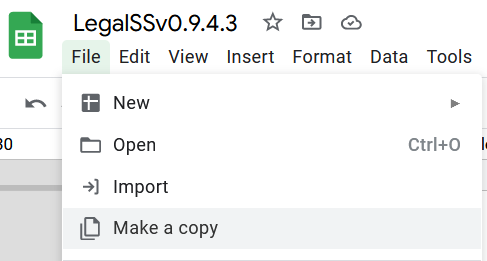
You should get a pop-up like in the image below.
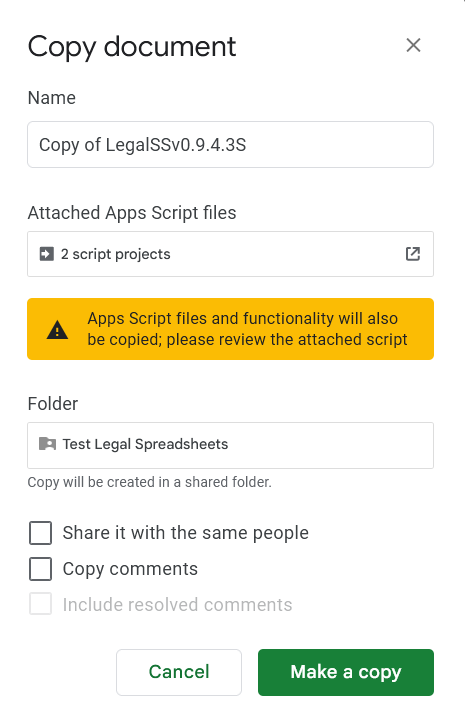
You can change the name of this copy to a more convenient name without affecting the L4 language, otherwise you can leave the default name as it is.
2. Choose where you want to copy the LegalSS spreadsheet
Choose where you want to copy the spreadsheet. In this example, we copy to “My Drive”
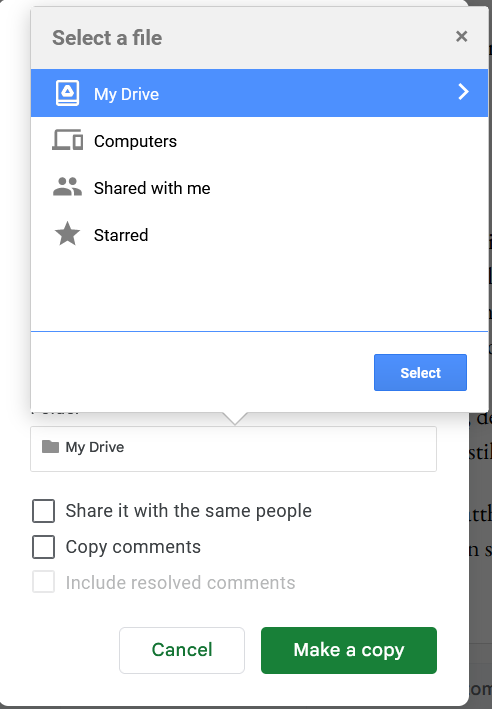
This will be your copy of the LegalSS spreadsheet.
3. Refresh the sidebar
You should be able to see a “L4 Sidebar” option next to the “Help” option in the toolbar found on the top of the document. Use this button whenever you make changes to the spreadsheet.

4. Ensure you can see the sidebar
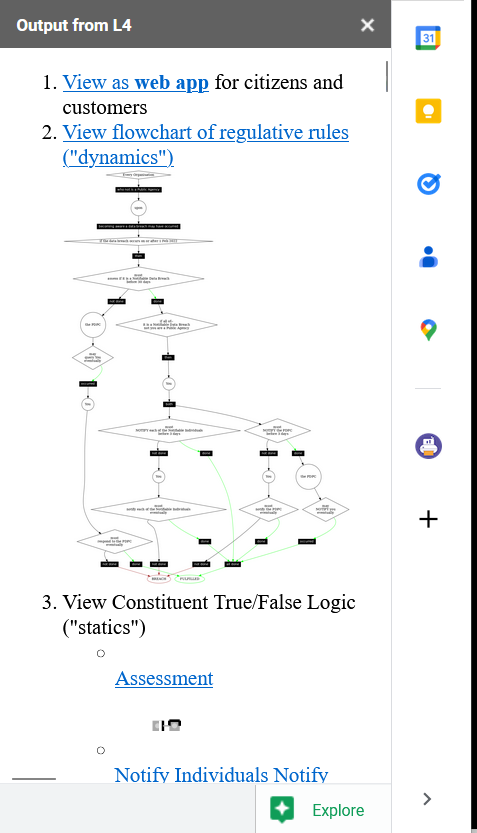
In your copy of LegalSS spreadsheet, after pressing the ‘refresh’ button, you should see a sidebar appear on the right side of the page.
Contact the L4 developers for help
If you do not see a sidebar, contact the L4 developers for help.
Familiarise yourself with the LegalSS spreadsheet
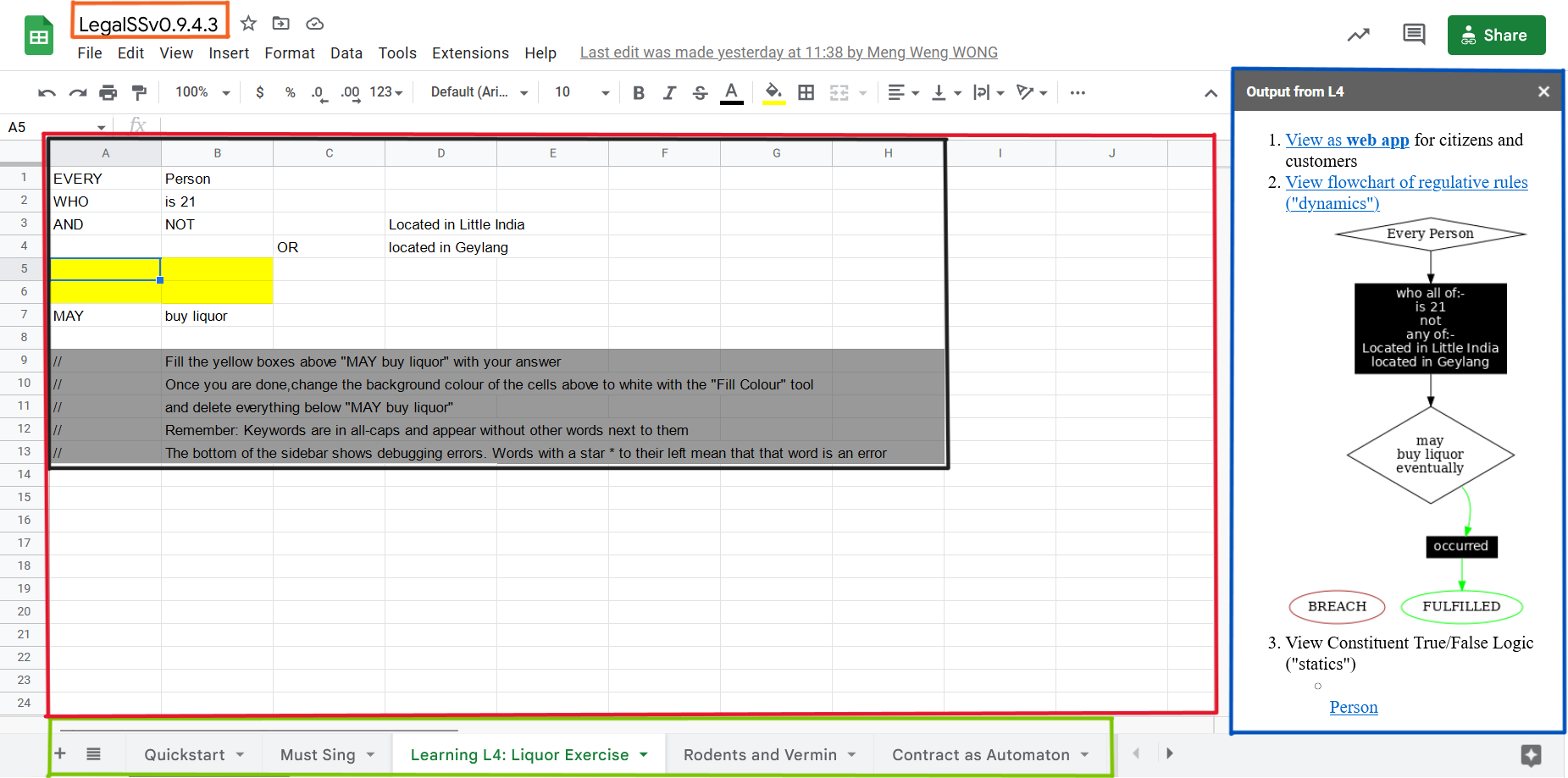
Orange box: Name of your copy of the LegalSS Spreadsheet
In this screenshot, the name refers to the original name of LegalSS spreadsheet.
You should either see the default name “Copy of LegalSSv0.9.4.3” or whatever name you have replaced the default name with.
Green box: LegalSS spreadsheet tabs linking to other examples
The LegalSS spreadsheet comes with built-in examples that you can navigate to with the tabs at the bottom of the page.
Red box: Environment for writing L4
This is where you write your L4 code.
Black box: Liquor exercise example
In this particular LegalSS spreadsheet tab is the Liquor exercise, given in grey cells. The grey box with words contains comments; these comments will not run as L4 code.
The light blue box found in the first column shows you what cell is being selected and that will be edited if you type something. In this example screenshot, a cell highlighted in yellow is selected.
You will fill your answer in the cells highlighted in yellow.
Next Steps
Once you have finished installation, consider exploring: