1. Webtool Setup Instructions
Overview
Installation instructions for the Web Tool were taken and edited from https://github.com/smucclaw/vue-pure-pdpa.
You will be able to install the Web Tool even if they are unfamiliar with some of Vue, Purescript, or Haskell.
Vue is a framework similar to React and Angular, providing infrastructure for component-oriented single-page web application development. We chose it for its excellent support for hot-reloading and re-rendering.
Purescript is a functional language that compiles to Javascript, used for the configuration and interactive recomputation of the interview results. We chose it because it lies at the intersection of Haskell-style functional programming and compatibility with Javascript and Vue [1] for web development.
Haskell is a functional language used to implement the L4 parser, interpreter, transpilers, and intermediate representation components. We chose it because it is generally recognized as a good choice for language engineering and writing compiler-related tools [2].
Future development of this Web Tool will involve a design team familiar with the above technologies.
Requirements
NodeJS (versions 16 and above)
Setup and Usage
Clone the SMU CCLAW vue-pure-pdpa github page.
Configuring environment variables with .env
Before proceeding with the steps below, copy the .env.example to .env in your cloned vue-pure-pdpa repository. You can do this with the following command:
mv .env.example .env
Inside the newly created .env file, configure the following settings according to your application:
BASE_URL=/
VUE_APP_BROWSER_NAME=CCLAW
VUE_APP_NAME="PDPA DBNO PoC - Draft"
Installing NVM
NVM is a version manager for node. Follow the instructions on the nvm github for installation.
Installing packages
Run the following set of install scripts:
nvm install
nvm use
nvm exec
npm install -g node-gyp@latest
npm install
npm run deps
Running in development
Start the application in development mode by running:
$ npm run serve
The application can be accessed at localhost:8080.
If you’ve been assigned a different port 8xxx, use
$ npm run serve -- --port=8xxx
If you have a working web app at the interface, you should be able to proceed to use this repo as part of the L4 backend.
Building for production
To build the application for production, run:
$ npm run build
This command should produce a dist/ directory. Deploy the contents in the dist/ directory to your application of choice (e.g. Github pages).
An example can be found at https://smucclaw.github.io/vue-pure-pdpa/ or https://smucclaw.github.io/mengwong/pdpa/.
In other words, mv the relevant files from dist/ into the smucclaw/smucclaw.github.io repository.
Using Docker
Alternatively, you may run this application on a Docker container by running:
$ docker-compose up --build
Using v8k
v8k is a little server-management script that allocates new development servers to ports in the 8000 range.
Once you’re able to run npm run serve you can think about spawning new servers in response to updates from the Python/Flask/natural4-exe end of things.
Spawning new servers allows you to edit work in one server without affecting another server, such as when you have multiple sheets of different rules.
Setting up v8K
You only have to do this once:
mkdir ~/v8kworkdir
cd ~/v8kworkdir
export V8K_WORKDIR=~/v8kworkdir
git clone git://github.com/smucclaw/vue-pure-pdpa
rsync -va vue-pure-pdpa/ vue-big/
(cd vue-big; npm i; npm run deps)
rsync -va --exclude={.spago,.git,node_modules} vue-big/ vue-small/
cd vue-small
ln -s ../vue-big/.git .
ln -s ../vue-big/node_modules .
ln -s ../vue-big/.spago .
Remember to update your gunicorn conf file to set V8K_WORKDIR to the path as above.
This sets you up with vue-small, which is a copy of vue-big, which is a copy of the vue-pure-pdpa repo.
vue-small takes up less space by taking advantage of symlinks to reuse existing files that don’t change across copies.
This becomes valuable because v8k later rsyncs vue-small to vue-01, vue-02, and so on, at runtime. This rsync happens when we’re trying to hurry: the end-user could click on the “vue web app” link at any time, so we want to bring up the vue web app as fast as possible.
If the vue-YY directory doesn’t already exist, then the rsync is liable to be slow, so we want to minimize the size of the vue-small.
We could pre-rsync the vue-YY directories at this point, too, with something like
for yy in 01 02 03 04 05 06 07 08 09; do rsync -va vue-small/ vue-$yy/; done
Spawning a new server
Note that you do not have to run the following commands; this is just an explanation of how the Python Flask subsystem spawns a server.
Every time the Python Flask subsystem runs natural4-exe to refresh the workdir output, it will want to tell Vue that there is a new .purs file that contains a Rule Library.
It should run:
~/src/smucclaw/vue-pure-pdpa/bin/v8k up --uuid=000 --ssid=111 --sheetid=222 ~/src/smucclaw/dsl/lib/haskell/natural4/workdir/000/111/222/purs/LATEST.purs
The STDOUT of this command will be a port number and path. Append that to the server public ip or domain name to get something like
http://18.139.62.80:8001/000/111/222/
And a few seconds later that link should serve an instance of your personal Vue app configured with the LATEST.purs that you gave it. [3]
The above up call is idempotent: the Flask system can just re-run it when the workdir changes and serve the constructed URL back to the sidebar. Most of the time the URL will not change but sometimes it will, so do read it each time.
Bringing down a server
Usually you can just leave the servers running. The v8k script has the notion of a pool, whose default size is 10; after 10 slots are allocated, new up commands will overwrite the oldest server.
If you have the notion of “ending a session” in the Google Sheets “IDE” frontend, the Python Flask subsystem is invited to call
~/src/smucclaw/vue-pure-pdpa/bin/v8k down --uuid=000 --ssid=111 --sheetid=222
This will deallocate the running instance and make the slot available.
Bringing down a server through a forced shutdown
There are 10 slots per v8K run.
If you are certain you want to bring down one of the slots, say, slot 03, run:
~/src/smucclaw/vue-pure-pdpa/bin/v8k downdir 03
Checking to see what’s running using v8k
This command should, in theory, walk the V8K_WORKDIR to see what’s going on.
~/src/smucclaw/vue-pure-pdpa/bin/v8k list
Checking to see what’s running without using v8k
If you do not trust v8K, probe the OS:
ps wwaux | grep port=80
to see what’s on port 80something.
Accessing the Web Tool
The web-based self-assessment tool for data breach notifications (hereinafter called the “Web Tool”) can be accessed via a link in the sidebar which appears in the L4 spreadsheet.
When the spreadsheet is being actively edited by a “legal engineer”, the sidebar and the Web Tool automatically update to reflect changes. To force a refresh of the sidebar without editing the sheet, click the checkbox in the top row (shown highlighted in the screenshot below).
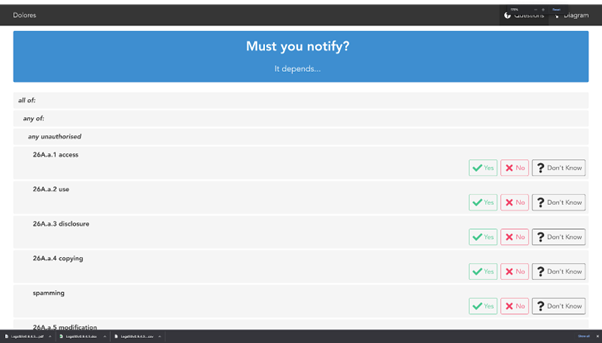
To access the Web Tool, click on the first link in the sidebar in the spreadsheet UI.
A snapshot of the Web Tool is attached in the form of a tar.gz file, containing a vue directory which contains the source code of the tool. From inside that directory, the Web Tool can be built and rebuilt using the commands npm run serve and npm run build. For more information on running Vue, see the Vue Guides.
The Web Tool can run in both https and http-only modes. The configuration options for https operation are given in section Https is needed; letsencrypt refreshes certificates.
There is a “diagram” link in the Web Tool which visualizes the decision tree. This component is outside the scope of the use case and should be ignored. The roadmap for this Web Tool revises its diagram component to match the decision diagrams shown in the spreadsheet sidebar.
Footnotes